If changing the PO amount is necessary, a user just needs to enter the values such as volume, unit rate, D/C (%), and the price in the red boxes above when reissuing the PO after canceling.
SALES DISTRIBUTION The 3 customers with the highest sales in the year given MONTHLY TOP 3 CUSTOMERS WITH HIGHEST SALES The 3 customers with highest sales at the month given in the year when is set on SALES DISTRIBUTION FINANCIAL PROCESS STATUS The total amount by the financial process status Ordered : The total amount that customers ordered to the user Invoiced : The total amount that a user issued the invoices to the customers Paid : The total amount that customers paid for the user Unpaid : The total amount that customers didn't pay for the user TOTAL SALES The total amount that a user issued the invoices to the customers in the year given on SALES DISTRIBUTION TOTAL COST The total amount that a user paid for the vendors in the year given on SALES DISTRIBUTION GROWTH (YoY) The sales growth rate compared to the same period last year GM Gross Margin, which is calculated from the total sales and total costs Note) This is different from the GM (%) in the project list, w...
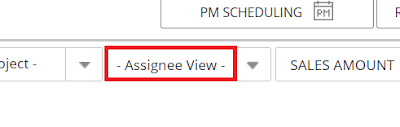
[Assignee View] is one of search options used to sort projects in the project list by Assignee type (“Vendor” or “Employee”). Under [Assignee View], select Vendor Only to display only the Vendor’s task from the screen, or Employee Only to display only the Employee’s task.
This introduces how to search for only the projects with a specific project number by using a keyword. 1. Enter a keyword in the above area of [PROJECT NAME]. 2. Among the projects displayed, click the specific project number necessary to be sorted out. 3. Click the [Clear All] button below to delete the keyword in the search results. 4. Click the [Refresh] button below to initialize the search results.
A user can change the sales and cost amounts directly from the project list. Although you've already created a project and sent the job request to a resource, you can directly revise the project list's values by double-clicking the cells to be touched. Please be noted that doing this can make some stats (EXP EXT COST, ETC, and EXP GM, etc.) changed accordingly.
If you want to check how much sales the company has this month, you may click the [THIS MONTH] button on the top of the project list. You can click [THIS MONTH] to display the search results and then click the arrows outside [Start Date] and [End Date] to display the search results for the previous month and the next month. This is also working the same at [TODAY] and [THIS YEAR] buttons. If you want to clear the search results, you may click the same button as you did once again.
[EXPORT TO EXCEL (FINANCE)] is a function that can sort the PO-issued details by a vendor. The exported sheet contains NAME, TOTAL AMOUNT, CURRENCY, TOTAL PRICE (amount to which an exchange rate is applied), ACCOUNT HOLDER, BANK NAME, ACCOUNT NO, SWIFT CODE, and BANK ADDRESS. With this function, a user can easily check how much it is to make each vendor's payment.